
|
Getting your Trinity Audio player ready...
|
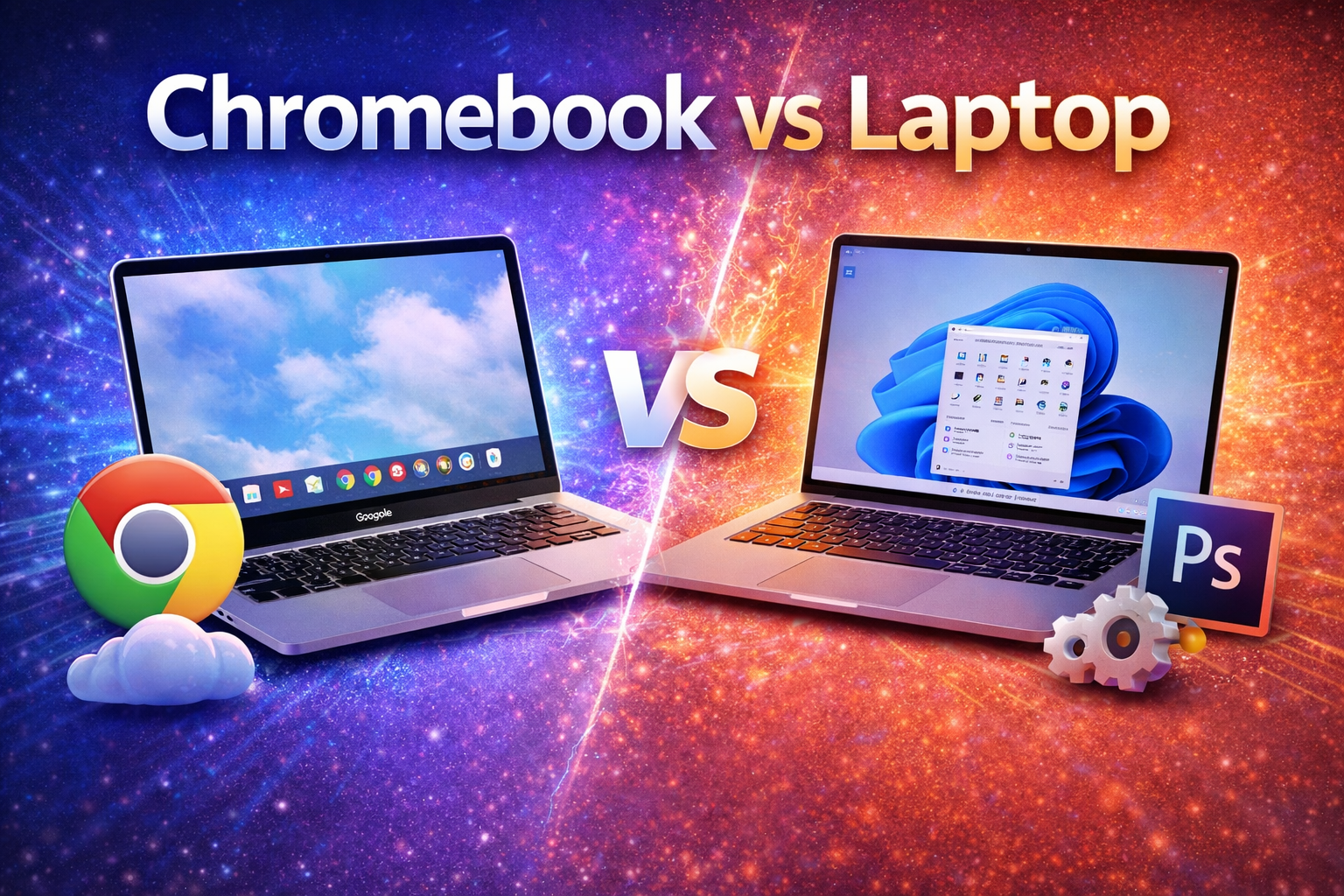
When buying a new computer, many people get confused between a Chromebook vs laptop. Both devices may look similar, but they are designed for different purposes and users. Understanding the differences can help you choose the right device for work, study, or entertainment.
In this guide, we will explain the key differences between Chromebooks and traditional laptops, including performance, operating systems, pricing, and best use cases.
What Is a Chromebook?
A Chromebook is a lightweight computer that runs on ChromeOS, an operating system developed by Google. Unlike traditional laptops, Chromebooks rely heavily on internet-based applications and cloud storage.
Instead of installing heavy software, Chromebooks mainly use:
- Web applications
- Google Workspace tools
- Android apps from the Play Store
Because of this, Chromebooks are generally fast, simple, and easy to maintain.
What Is a Laptop?
A traditional laptop is a portable computer that usually runs operating systems like Microsoft Windows, macOS, or Linux. These laptops are more powerful and flexible because they can run full desktop software.
Laptops allow users to install programs such as:
- Microsoft Office
- Adobe Photoshop
- Video editing software
- Professional development tools
Because of their versatility, laptops are commonly used for business, education, and professional work.
Chromebook vs Laptop: Key Differences
Operating System
One of the biggest differences between Chromebooks and laptops is the operating system.
Chromebooks run ChromeOS, which focuses on web-based apps and cloud services. It is simple, secure, and easy to use.
Traditional laptops run operating systems like Windows or macOS, which support full desktop software and offer more flexibility.
For users who mainly work online, ChromeOS is usually enough. However, if you need advanced software, a traditional laptop is the better option.
Performance
Chromebooks are designed for basic computing tasks such as:
- Web browsing
- Online classes
- Video streaming
- Document editing
They typically use lightweight processors and lower storage, which helps keep costs low.
Traditional laptops often come with more powerful processors, larger storage, and higher RAM options. This allows them to handle demanding tasks like:
- Video editing
- Gaming
- Programming
- Graphic design
If performance is important, laptops usually provide better power and multitasking capabilities.
Comparison Table
| Feature | Chromebook | Laptop |
|---|---|---|
| Operating System | ChromeOS | Windows, macOS, or Linux |
| Performance | Good for basic tasks | Suitable for basic to heavy tasks |
| Software Support | Web apps and Android apps | Full desktop software support |
| Storage | Mostly cloud storage | Large local storage options |
| Processor Power | Usually entry-level processors | Entry-level to high-performance CPUs |
| Battery Life | Excellent battery life | Good to excellent depending on model |
| Price Range | Usually budget-friendly | Budget to premium pricing |
| Best For | Students, browsing, online work | Professionals, gaming, editing |
| Offline Use | Limited offline capability | Works fully offline |
| Upgrade Options | Limited upgrades | Some models allow upgrades |
Software Support
Chromebooks mainly rely on web applications and Android apps. Many common tools such as Google Docs, Gmail, and YouTube work perfectly on them.
However, some professional software programs are not available for ChromeOS.
Traditional laptops support a wider range of software, including advanced programs used by professionals. This makes them more suitable for users who require specialized applications.
Storage and Cloud Usage
Chromebooks typically use smaller storage drives because most files are stored online through cloud services like Google Drive.
This approach helps keep the device lightweight and affordable.
Traditional laptops usually include larger internal storage, allowing users to store files, programs, and media locally.
For users who work offline frequently, laptops may be a better option.
Price Comparison
One major advantage of Chromebooks is affordability. They are often cheaper than traditional laptops because they use simpler hardware.
Chromebooks are commonly used in schools and by students because they provide good performance for basic tasks at a lower price.
Laptops can range from budget models to high-end machines. Premium laptops offer better build quality, stronger processors, and advanced features.
If you are on a tight budget, a Chromebook may be the more economical choice.
Battery Life
Chromebooks are known for excellent battery life. Because ChromeOS is lightweight, these devices consume less power and often last longer on a single charge.
Many Chromebooks can easily run for a full day without charging.
Laptops also offer good battery performance, but powerful hardware may consume more energy depending on usage.
Which One Should You Choose?
Choosing between a Chromebook and a laptop depends on how you plan to use the device.
Choose a Chromebook if you need:
- A budget-friendly computer
- A device for online work or school
- Long battery life
- A simple and secure operating system
Choose a Laptop if you need:
- Powerful performance
- Professional software support
- Offline productivity
- Gaming or creative work capabilities
For casual users and students, a Chromebook can be a great option. For professionals and power users, a traditional laptop usually provides more flexibility and performance.
Final Thoughts
The debate between Chromebook vs laptop comes down to your personal needs and budget. Chromebooks offer simplicity, affordability, and excellent battery life, making them ideal for everyday tasks and online activities.
On the other hand, traditional laptops provide greater power, software compatibility, and flexibility for demanding workloads.
Before buying a device, consider what tasks you perform most often. Choosing the right computer will ensure better productivity and a smoother user experience.