
|
Getting your Trinity Audio player ready...
|
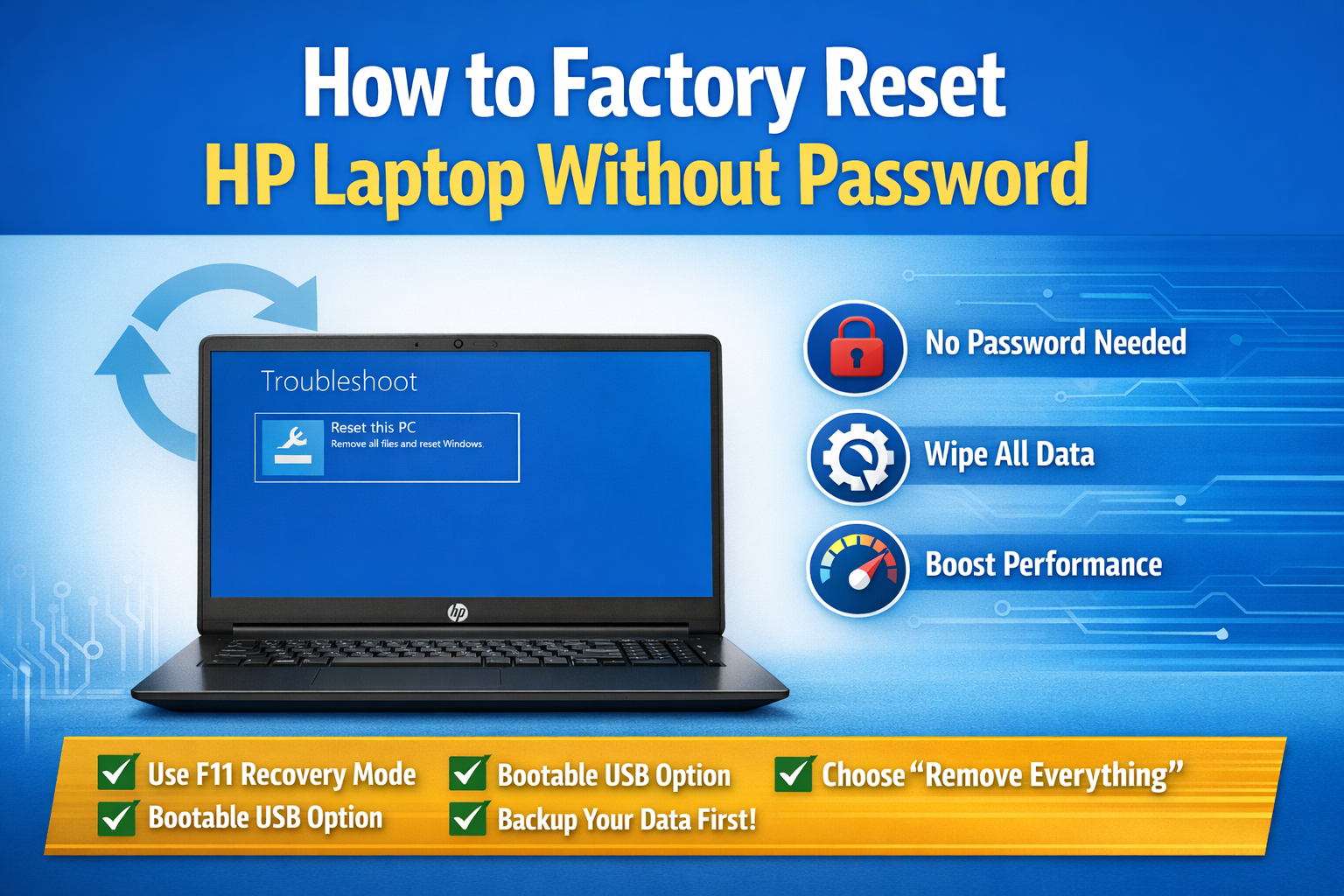
If you’re locked out of your HP laptop and don’t remember the password, don’t worry. This is a common issue, and the good news is that you can still reset your laptop without needing the password. In this guide, you’ll learn how to factory reset HP laptop without password in a safe and simple way.
This article is written in easy language so even beginners can follow along without confusion.
Overview: Why You May Need to Factory Reset
There are several situations where you might want to factory reset your HP laptop:
- You forgot your login password
- Your laptop is running very slow
- You want to remove viruses or malware
- You are selling or giving away your laptop
- Windows is not working properly
A factory reset will erase all your data and restore your laptop to its original settings, just like when it was new.
Design: What Happens During a Factory Reset?
Before you proceed, it’s important to understand what a factory reset does:
- Deletes all files, apps, and settings
- Removes passwords and user accounts
- Reinstalls Windows operating system
- Restores default system configuration
👉 Important Tip: If you have important data, try to back it up before resetting. If you’re locked out, you may need external help or recovery tools.
Display: Method 1 – Reset Using Windows Recovery Environment
This is the easiest and most common method to factory reset your HP laptop without password.
Steps:
- Turn off your HP laptop completely
- Turn it on and immediately press the F11 key repeatedly
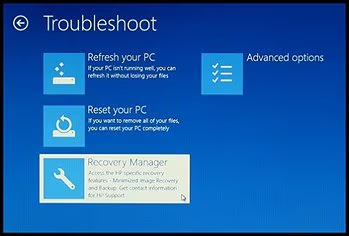
- This will open the Recovery Manager / Windows Recovery Environment
- Select Troubleshoot
- Click on Reset this PC
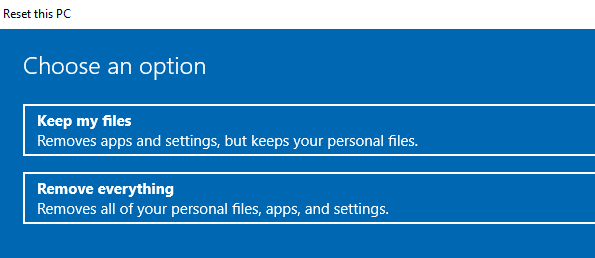
- Choose one option:
- Keep my files (removes apps but keeps personal files)
- Remove everything (recommended for full reset)
- Follow the on-screen instructions
- Wait for the reset process to complete
💡 This method works on most HP laptops with Windows 10 and Windows 11.
Performance: Method 2 – Reset Using Installation Media
If the F11 key method doesn’t work, you can use a bootable USB drive.
What You Need:
- Another working computer
- USB drive (at least 8GB)
Steps:
- Download Windows Media Creation Tool from Microsoft
- Create a bootable USB
- Insert the USB into your HP laptop
- Turn on the laptop and press Esc or F9 (Boot Menu)
- Select USB drive
- Choose Repair your computer
- Go to:
- Troubleshoot → Reset this PC
- Select Remove everything
- Follow instructions
This method is more advanced but very effective.
Cooling: Will Reset Fix Overheating Issues?
A factory reset can help with software-related overheating issues, such as:
- Too many background apps
- Malware causing high CPU usage
- Corrupted drivers
However, it won’t fix hardware problems like:
- Dust in fans
- Faulty cooling system
For best results, combine reset with proper cleaning.
Battery Life: Does Reset Help Battery Performance?
Yes, in many cases.
After resetting:
- Battery-draining apps are removed
- System runs efficiently
- Background processes are minimized
This can lead to better battery life, especially if your laptop was previously overloaded.
Pros and Cons of Factory Resetting HP Laptop
✅ Pros:
- Removes password completely
- Fixes system errors and bugs
- Improves speed and performance
- Removes viruses and malware
- Fresh start for your device
❌ Cons:
- Deletes all personal data
- Requires reinstalling apps
- Takes time (30 minutes to a few hours)
- Needs backup planning
Final Verdict: Is Factory Reset Without Password Safe?
Yes, learning how to factory reset HP laptop without password is completely safe if done correctly.
It is one of the best solutions when:
- You are locked out
- Your laptop is not working properly
- You want a clean system
However, always remember:
- Backup data if possible
- Follow steps carefully
- Use official Windows tools